SVG Optimizer & Minifier
Shrink SVG file size by removing metadata, comments and excess precision · free, no signup
See SVG Optimizer & Minifier in action
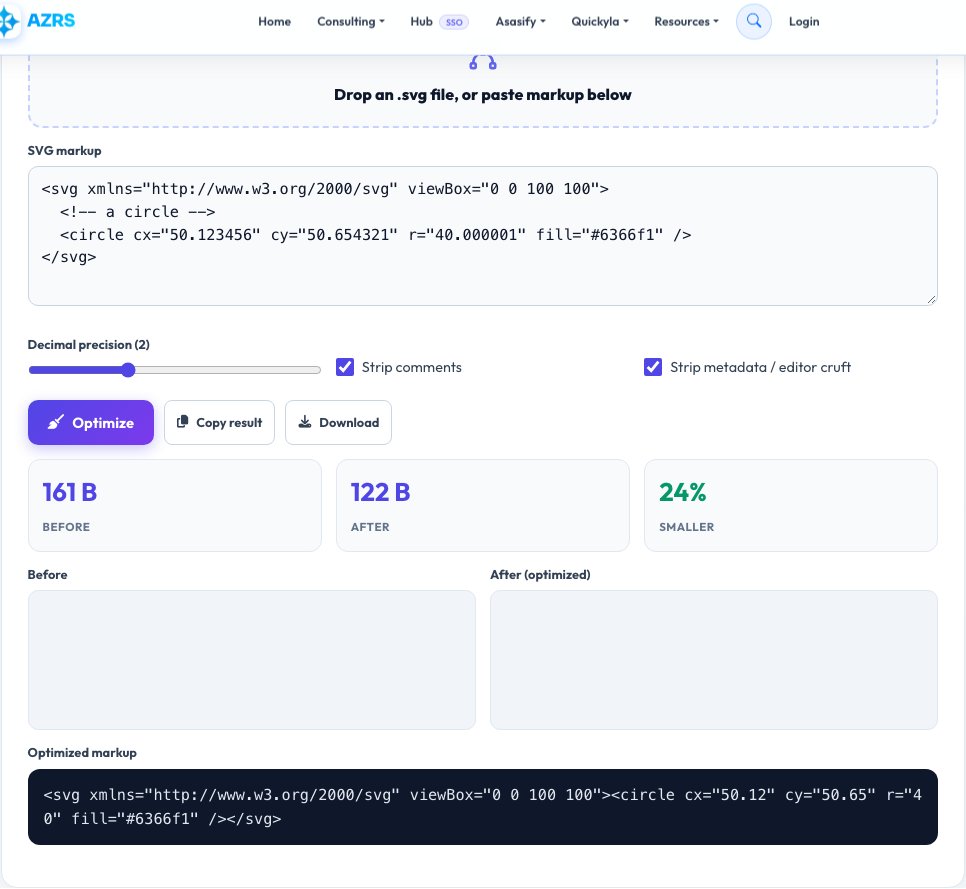
Free SVG Optimizer & Minifier
SVG files exported from design tools like Illustrator or Figma often carry a lot of dead weight: editor metadata, XML comments, unnecessary namespace declarations, and coordinates with far more decimal places than any screen can render. This tool strips that clutter client-side — removing comments and metadata, collapsing whitespace, trimming excess numeric precision and removing empty groups — while leaving the visible artwork untouched.
A before/after size comparison and percentage saved is shown immediately, along with a live preview of the optimized SVG so you can confirm nothing visually changed. Because SVG is just XML text, this all happens by parsing and rewriting the markup in your browser, with no image re-rendering and no upload.
Key features
Live before/after size
See exact byte size and percentage reduction instantly.
Visual preview
Confirm the optimized SVG still looks identical.
Adjustable precision
Choose how many decimal places to keep in coordinates.
100% client-side
Your SVG markup never leaves your browser.
How to use it
- Paste your SVG markup or upload an .svg file.
- Adjust the precision and cleanup options if needed.
- Compare the before/after preview and size shown.
- Copy the optimized markup or download it as a file.
Worked example
Example
A 14.2 KB icon exported from a design tool, full of comments and 6-decimal coordinates, optimized down to 2.8 KB (80% smaller) with an identical rendered appearance.
Who uses this tool
Web developers
Reduce page weight from inline or linked SVG icons.
Designers exporting from Illustrator/Figma
Clean up export bloat before handing files to developers.
Email and newsletter builders
Keep SVG logos small for faster-loading emails.
Tips for the best results
- Always eyeball the before/after preview — aggressive precision trimming can occasionally distort very fine curves.
- Keep a readable, unoptimized master file and only minify the shipped copy.
- Remove editor-specific IDs and classes if you don't reference them in CSS, to save extra bytes.
- For icon sets, optimize each one individually rather than assuming one setting fits all icons.
Common mistakes to avoid
- Optimizing an SVG that has script or animation tags without checking they still work afterwards.
- Reducing precision so far that curved paths become visibly jagged.
- Forgetting that optimizing text-based SVG doesn't rasterize it — it's still a vector, just leaner markup.
Why use AZRS QuickFix?
It is 100% free, needs no signup and has no watermark or usage limits. The tool runs in your browser, so what you type stays on your device, and it works on phones, tablets and desktops. New tools are added every week — bookmark this page or browse the full QuickFix toolbox.
Frequently asked questions
Will this change how my SVG looks?
No meaningful visual change for normal precision settings; always check the live preview to confirm, especially for very fine detail.
Is this the same as tools like SVGO?
It performs similar cleanup — removing comments, metadata and excess precision — using the same general approach, entirely in your browser.
Can it handle SVGs with embedded images or fonts?
Yes, embedded base64 data is preserved as-is since compressing it further would need re-encoding the underlying image.
Is my SVG uploaded to a server?
No, all parsing and optimisation happens client-side in JavaScript.
Can I optimize multiple SVGs at once?
This tool handles one at a time for a clear before/after comparison; paste each one in turn.
Does it support animated SVGs?
Yes, SMIL animation and CSS-based animation tags are left intact by default.