File Encryption
& Decryption
Protect any file with military-grade encryption. AES-256-GCM, ChaCha20, RSA and more. All processing happens in your browser — zero server upload.
Drop your file here
or click to browse · Any format · Processed locally
Why Choose Our Encryption Tool
Professional-grade security. Zero compromises. Everything processed in your browser.
100% Client-Side
Your files never leave your browser. All encryption and decryption is done locally using the WebCrypto API.
AES-256-GCM
The same encryption standard used by governments, banks, and militaries worldwide. Quantum-resistant via large key sizes.
PBKDF2 Key Derivation
Passwords are never used directly. PBKDF2 with 600,000 iterations and a random salt hardens against brute-force attacks.
Completely Free
No account, no subscription, no limits. Encrypt files of any size. Unlimited operations forever.
Any File Type
PDFs, images, videos, archives, documents — any file can be encrypted. No format restrictions.
File Integrity Hashes
Compute MD5, SHA-1, SHA-256, SHA-384, SHA-512 checksums to verify file integrity and authenticity.
RSA Key Generation
Generate 2048 or 4096-bit RSA key pairs for asymmetric encryption and digital signatures.
Secure Password Gen
Generate cryptographically strong passwords, API tokens, UUIDs, and PINs using browser CSPRNG.
How File Encryption Works
Understanding the security process behind every encrypted file
When you encrypt a file, here is exactly what happens step-by-step inside your browser:
A cryptographically random 16-byte salt is generated using crypto.getRandomValues(). This ensures that even the same password produces a different key every time.
Your password is processed through PBKDF2 with 600,000 iterations of SHA-512. This takes ~1 second deliberately — making brute-force attacks 600,000× harder.
A unique 12-byte initialization vector (IV/nonce) is generated. Combined with the key, this ensures ciphertext is unique even for identical files.
The file data is encrypted using AES-256 in GCM mode, which also produces a 128-bit authentication tag to detect any tampering.
The output file contains: magic header + version + algorithm + salt + IV + encrypted data + auth tag. Everything needed to decrypt is bundled in the file.
Decryption reverses the encryption process:
The tool reads the magic header to verify it's a valid encrypted file, extracts the algorithm, salt, IV, and ciphertext.
PBKDF2 runs again with the stored salt and your provided password to reconstruct the exact same encryption key.
AES-GCM verifies the authentication tag. If the password is wrong or the file was tampered with, decryption fails immediately.
The original file is reconstructed and offered as a download with its original filename.
| Algorithm | Type | Security | Speed | Best For |
|---|---|---|---|---|
| AES-256-GCM | Symmetric | Excellent | Fast | General purpose — recommended default |
| AES-256-CBC | Symmetric | Very Good | Fast | Max compatibility with older systems |
| AES-256-CTR | Symmetric | Very Good | Fastest | Large file encryption (parallelizable) |
| RSA-OAEP | Asymmetric | Excellent | Slow (key size) | Key exchange, small data encryption |
A 5-word passphrase (e.g. "correct horse battery staple purple") is stronger than a complex 8-character password. Target 20+ characters.
We never store your password. If you lose it, your file cannot be recovered. Store it in a password manager like Bitwarden or 1Password.
AES-256-GCM provides both encryption AND authentication — it detects any tampering automatically. It's the gold standard.
Your RSA private key should never be shared or stored online. Keep it in a secure offline location.
See Free File Encryption, Decryption, Hashing & Key Generator in action
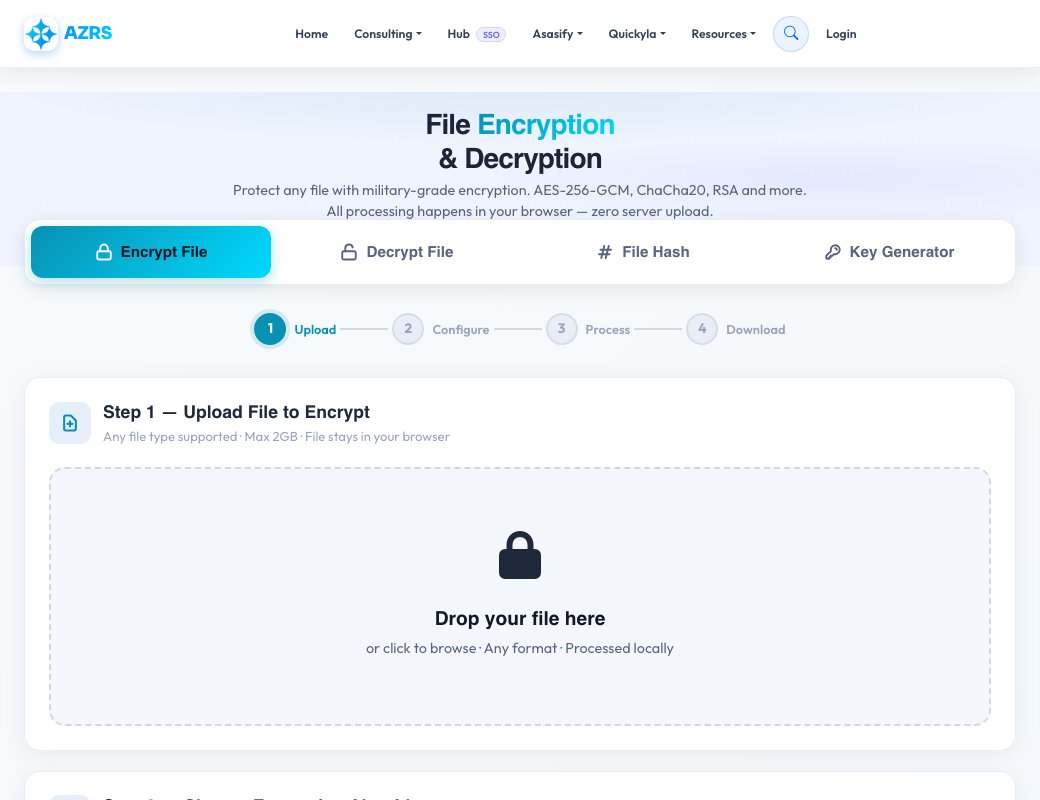
Free File Encryption, Decryption, Hashing & Key Generator
This tool covers four related jobs in one interface, switched with a mode tab: encrypt a file with a password, decrypt a previously encrypted file, generate a cryptographic hash of a file for integrity checks, and generate encryption keys. Encryption uses AES with a configurable key size, iteration count and hash algorithm for the password-based key derivation.
A four-step progress indicator (select mode → upload → configure → process) keeps the workflow clear, and options like optional compression before encrypting and stripping file metadata let you tune the output for either smaller size or extra privacy.
Key features
AES encryption & decryption
Protect a file with a password using AES, with adjustable key size, iteration count and hash algorithm.
File hashing
Generate a cryptographic hash of a file to verify it hasn't been altered or corrupted.
Key generation
Generate encryption keys for use with the encrypt/decrypt workflow.
Compression & metadata stripping
Optionally compress the file before encrypting, and optionally remove embedded metadata.
How to use it
- Choose a mode: Encrypt, Decrypt, Hash or Key Generator.
- Drop or select the file you want to process.
- Set the key size, iteration count and hash algorithm (encrypt/decrypt) or leave defaults.
- Run the operation and download the resulting file.
Worked example
Example
Encrypting a sensitive PDF: choose Encrypt mode, upload the file, set a strong password and leave the default AES key size, then download the encrypted output. Send that file safely and share the password through a separate channel — only someone with both can decrypt it back to the original PDF.
Who uses this tool
Freelancers & small teams
Encrypt a contract or financial file before emailing it, since email itself isn't encrypted.
Students & researchers
Protect sensitive survey data or personal files stored on a shared or public computer.
Developers
Generate a quick file hash to confirm a downloaded or transferred file wasn't corrupted.
Tips for the best results
- Use a long, unique password — the encryption is only as strong as the password protecting it.
- Share the password through a different channel than the encrypted file itself (never in the same email).
- A higher iteration count slows down brute-force attempts but also takes slightly longer to encrypt/decrypt.
- Keep a backup of the original file until you've confirmed the decrypted copy matches exactly.
Common mistakes to avoid
- Losing the password — there is no recovery option; a forgotten password means the file is permanently inaccessible.
- Sending the password in the same message as the encrypted file, which defeats the purpose.
- Using a weak, guessable password, which undermines even strong AES settings.
Why use AZRS QuickFix?
It is 100% free, needs no signup and has no watermark or usage limits. The tool runs in your browser, so what you type stays on your device, and it works on phones, tablets and desktops. New tools are added every week — bookmark this page or browse the full QuickFix toolbox.
Frequently asked questions
Is this file encryption tool free?
Yes, all four modes (encrypt, decrypt, hash, key generator) are free with no signup.
What encryption standard does it use?
AES, with a configurable key size, iteration count and hash algorithm for password-based key derivation.
What happens if I forget my password?
The file cannot be recovered — there's no backdoor, so store your password somewhere safe before closing the tab.
Is the file uploaded to a server?
Processing happens through the tool's own workflow and files are not kept after processing.
What's file hashing used for?
A hash lets you verify a file wasn't altered or corrupted, by comparing the hash before and after a transfer.
Can I encrypt any file type?
Yes, the tool encrypts the raw file bytes so it works regardless of the original file type.