PDF Form Filler
Fill in the real AcroForm fields of an uploaded PDF form and download the completed file · free, no signup
See PDF Form Filler in action
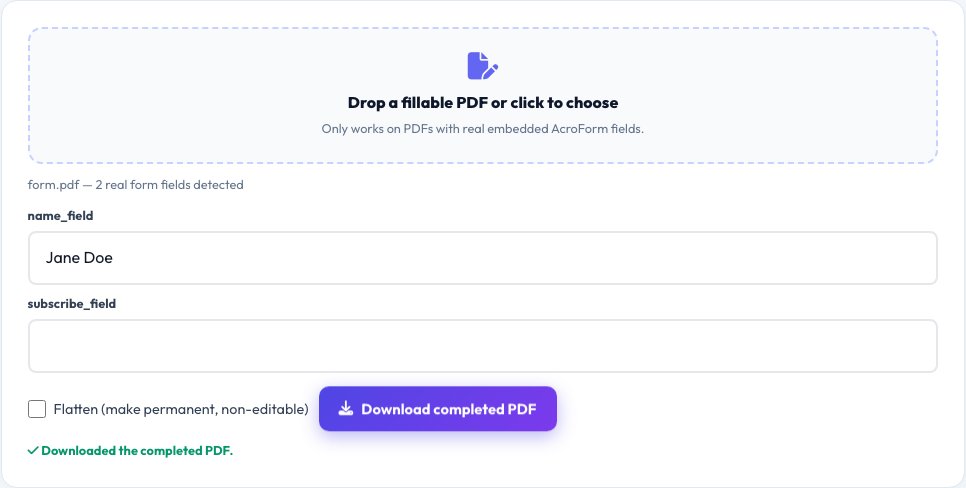
PDF Form Filler
Many official PDFs — applications, tax forms, intake sheets — are built with real interactive AcroForm fields: text boxes, checkboxes, dropdowns and radio buttons defined inside the PDF's own structure. This tool loads your PDF with pdf-lib and reads its actual embedded form fields, generating a real input for each one based on its real type, rather than making you print and hand-write or awkwardly type over a flattened image.
Fill in every field directly on the page, then rebuild the file — pdf-lib writes your answers into the PDF's real AcroForm field values (optionally flattening them into permanent page content) and the completed PDF downloads ready to submit or print, with every field's real value embedded in the file, not just visually overlaid.
Key features
Reads real AcroForm fields
Detects the PDF's actual embedded text, checkbox, dropdown and radio button fields, not just guessed text positions.
Correct input type per field
Text fields get a text box, checkboxes get a checkbox, dropdowns get a real dropdown — matching the form's real design.
Optional flattening
Choose to keep fields editable in other PDF readers, or flatten them into permanent, non-editable page content.
Real, valid output PDF
Rebuilt with pdf-lib so the downloaded file is a standard, fully valid PDF any reader can open.
How to use it
- Upload a fillable PDF.
- The tool detects and lists its real form fields.
- Fill in each field using the correct input type for that field.
- Download the completed PDF, with your answers written into the real form data.
Worked example
Example
A rental application PDF with 14 real AcroForm fields (name, address, checkboxes for pet ownership, a dropdown for lease length) is filled in directly on the page, then downloaded as a completed PDF where every one of those 14 fields now contains your real entered value.
Who uses this tool
Anyone filling out an official application or intake form
Type directly into the real form fields instead of printing and handwriting.
HR and admin staff processing fillable PDF forms
Fill and return forms digitally without a separate PDF editor subscription.
Anyone who needs to submit a completed PDF by email
Produce a real, properly filled PDF ready to send, not a photo of a handwritten page.
Tips for the best results
- This works on PDFs that already contain real interactive AcroForm fields — a form that's just a flat scanned image with no embedded fields has no detectable fields to fill this way.
- Flattening locks in your answers as permanent page content (safer if you don't want the recipient editing them further); leaving fields unflattened keeps them editable in another PDF reader.
- Always double-check dropdown and checkbox values against the original form's instructions, since some forms use non-obvious internal values for their options.
Common mistakes to avoid
- Uploading a scanned, non-interactive PDF and expecting real fillable fields to appear — only PDFs with genuine embedded AcroForm fields can be filled this way.
- Forgetting to flatten the form when submitting somewhere that expects a static, non-editable document.
- Leaving required fields blank — the tool fills exactly what you enter, so review every field before downloading.
Why use AZRS QuickFix?
It is 100% free, needs no signup and has no watermark or usage limits. The tool runs in your browser, so what you type stays on your device, and it works on phones, tablets and desktops. New tools are added every week — bookmark this page or browse the full QuickFix toolbox.
Frequently asked questions
Does this work on any PDF?
It works on PDFs that contain real, embedded AcroForm interactive fields. A form that's only a flat scanned image with no interactive fields has nothing for this tool to detect — check whether the original PDF shows clickable fields in a standard PDF reader first.
Are my answers really saved into the PDF, or just shown on screen?
They're written into the PDF's real AcroForm field values using pdf-lib and included in the downloaded file — any standard PDF reader will show your entered values when opening the completed file.
What does 'flatten' mean and should I use it?
Flattening converts your filled-in answers from editable form fields into permanent, fixed page content — use it if you want to prevent further editing after you send it; skip it if the recipient should still be able to adjust fields.
Can it handle checkboxes and dropdowns, not just text?
Yes — each field is filled using the correct real input type read directly from the PDF's own form definition: checkboxes as checkboxes, dropdowns as dropdowns, radio buttons as radio buttons.
Is the PDF uploaded to a server?
No, it's loaded, filled and rebuilt entirely in your browser with pdf-lib; the file never leaves your device.
Is my data stored?
No, nothing is saved after you leave the page.