3MF ⇄ STL Converter
Convert 3MF to STL and STL to 3MF, including multi-object slicer files · free, no signup
See 3MF ⇄ STL Converter in action
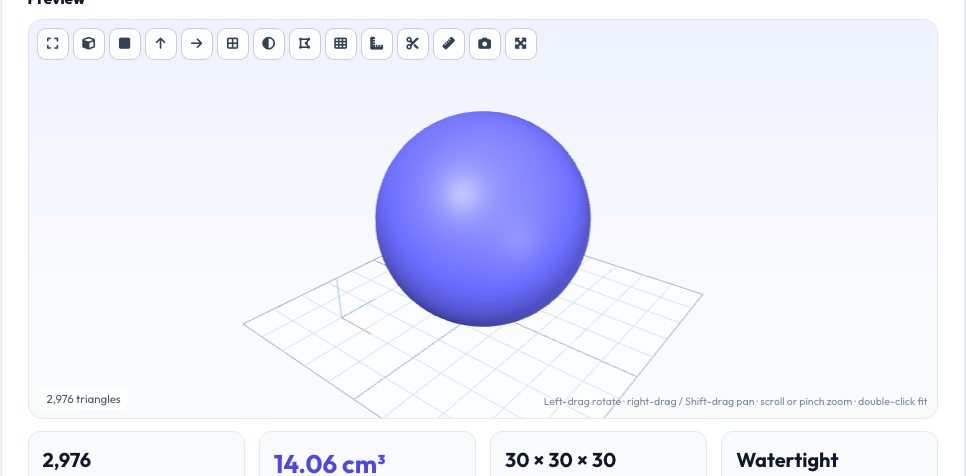
Free 3MF ⇄ STL Converter
3MF is the modern replacement for STL: it is a compressed package with real units, multiple objects and build transforms, and every current slicer uses it. But many tools, older slicers and CAD packages still only accept STL — and some people want 3MF to keep units and multiple parts together. This converter reads and writes both properly.
On reading, it parses the whole 3MF package — including objects made of components, build-item transforms and the 'production extension' used by Bambu Studio and OrcaSlicer — so the STL you get has every part placed exactly where the slicer plate had it. On writing, it produces a standards-compliant 3MF with millimetre units that opens in Cura, PrusaSlicer, Bambu Studio, Orca and Windows 3D Builder.
Key features
Multi-object 3MF support
Merges all build items with their transforms, so the plate layout is preserved.
Bambu / Orca / Prusa / Cura
Handles component references and external object files used by modern slicers.
Unit aware
Reads inch, cm or metre 3MF files and converts to millimetres.
Batch & ZIP
Convert several files at once and download them together.
How to use it
- Drop in a .3mf (or .stl) file.
- Check that the output is the format you want (it flips automatically).
- Press Convert and review the preview.
- Download the converted file.
Worked example
Example
A Bambu Studio plate with three parts exported as 3MF converts to one STL containing all three parts at their plate positions; an inch-unit 3MF produces an STL whose dimensions are multiplied by 25.4 to millimetres.
Who uses this tool
Makers moving between slicers
Open a Bambu or Orca project in a slicer that only reads STL.
People archiving prints
Store models as 3MF with proper units.
Anyone fixing a 'wrong size' 3MF
Convert units while converting formats.
Tips for the best results
- 3MF slicer projects can hold print settings and colours; the converted STL keeps geometry only.
- Use 3MF when you can: it carries units, so scale problems vanish.
- If you only want one part out of a plate, use the STL Merge & Split tool to separate shells.
- Check the preview before you slice.
Common mistakes to avoid
- Expecting slicer settings or paint-on supports to survive conversion to STL.
- Opening an STL expecting colours — STL has none.
- Ignoring unit warnings and scaling twice.
Why use AZRS QuickFix?
It is 100% free, needs no signup and has no watermark or usage limits. The tool runs in your browser, so what you type stays on your device, and it works on phones, tablets and desktops. New tools are added every week — bookmark this page or browse the full QuickFix toolbox.
Frequently asked questions
Does it keep colours and materials?
No — the converter outputs geometry only; STL cannot store colours.
Is a 3MF with several objects supported?
Yes. All build items are merged with their transforms. Use STL Merge & Split afterwards to separate them again.
Is 3MF better than STL?
For most uses yes: it is smaller, stores units and supports multiple objects, and is the default in Bambu Studio, Orca and Cura.
Is my file uploaded?
No, everything is processed locally.