STL Hollow Tool — Hollow Out Models & Save Resin
Hollow an STL with a set wall thickness and a drain hole, see resin saved · free, no signup
See STL Hollow Tool — Hollow Out Models & Save Resin in action
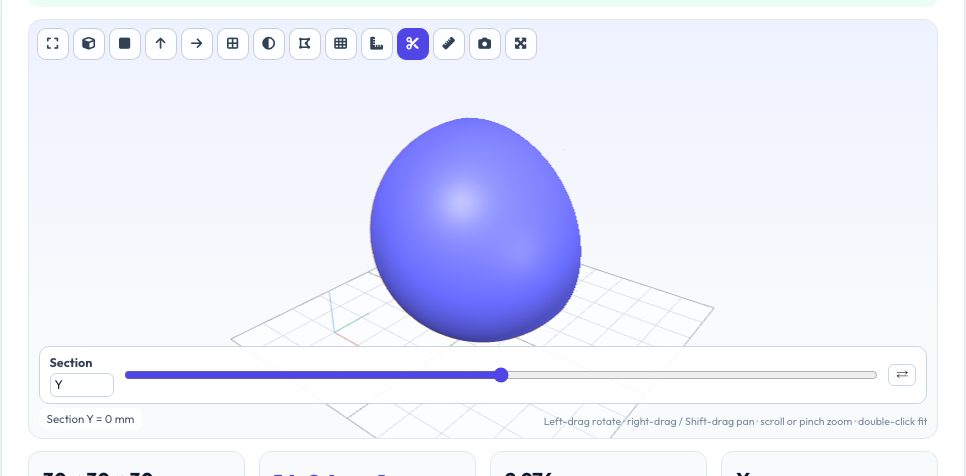
Free STL Hollowing Tool for Resin Printing
Resin is expensive, and a solid miniature or bust wastes most of it in the interior. Hollowing creates an inner cavity so only a shell of your chosen thickness is printed. This tool builds the cavity by offsetting the surface inwards: each vertex moves along a normal computed from its neighbouring faces so that corners keep a uniform wall thickness, and the cavity is added as an inside-out inner shell. You choose the wall thickness (0.4–8 mm) and see volume and resin cost before and after.
A hollow part needs a way for uncured resin to escape. Tick the drain-hole option and a hole of your chosen diameter is cut through the lowest point of the part with a boolean cut. Use the viewer's section tool to inspect the wall. The tool also checks the cavity volume against the expected shell volume and warns when thin features make the offset overlap itself.
Key features
Uniform-thickness offset
Angle-weighted normal solve keeps corners at the chosen wall thickness.
Drain hole
A through-hole at the lowest point, boolean-cut in the browser (up to 40k triangles).
Resin savings
Volume, grams, cost and percent saved.
Section inspection
Slice through the model to see the walls.
How to use it
- Drop in a watertight STL.
- Choose wall thickness and drain-hole size.
- Press Hollow and inspect with the section tool.
- Download the hollow STL and slice it.
Worked example
Example
A 20 mm cube hollowed with a 2 mm wall has a shell volume of 3.9 cm³ instead of 8 cm³ — about 51% saved. A 30 cm³ bust with 1.5 mm walls typically uses 35–45% of the solid volume.
Who uses this tool
Resin printer owners
Save resin on miniatures and busts.
Anyone printing large solid blocks
Reduce weight and print time.
Educators
Demonstrate shell vs solid volume.
Tips for the best results
- Use 1.5–2.5 mm walls for miniatures, 2–4 mm for functional parts.
- Always add at least one drain hole; add a second small vent at the top to avoid suction.
- Features thinner than twice the wall thickness cannot be hollowed — the check will flag them.
- FDM slicers hollow with infill settings; this tool is for closed-cavity resin prints.
Common mistakes to avoid
- Printing a hollow part without a drain hole.
- Choosing a wall thicker than thin features.
- Hollowing a non-watertight mesh.
Why use AZRS QuickFix?
It is 100% free, needs no signup and has no watermark or usage limits. The tool runs in your browser, so what you type stays on your device, and it works on phones, tablets and desktops. New tools are added every week — bookmark this page or browse the full QuickFix toolbox.
Frequently asked questions
Is the cavity wall thickness exact?
It is exact on flat faces and at convex corners; on very sharp concave details the offset can overlap, which the check reports.
Do I still need a drain hole in my slicer?
If you tick the drain hole here no, otherwise yes. Resin slicers also have hole tools.
What happens to the original file?
Nothing — your file is not modified or uploaded; you download a new file.
Does it work for FDM?
It works, but FDM slicers hollow with infill, which is usually better.