STL ⇄ OBJ 3D Model Converter
Convert STL, OBJ, PLY, 3MF, AMF, GLB — batch, with unit fix · free, no signup
See STL ⇄ OBJ 3D Model Converter in action
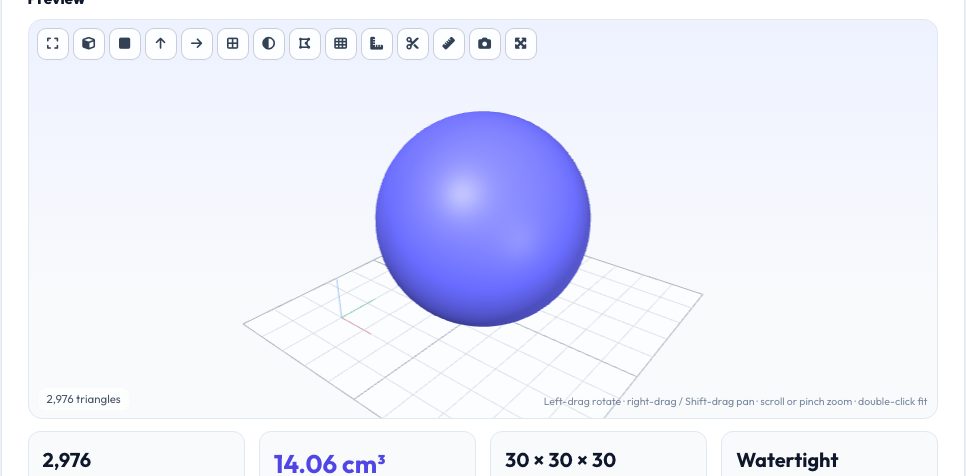
Free STL ⇄ OBJ 3D Model Converter
STL and OBJ are both triangle-mesh formats, but a lot of CAD, slicer, game and 3D-editing software only accepts one of them. This tool does a real conversion: it parses the triangle and vertex data from your file and rebuilds it in the target format — binary or ASCII STL, OBJ, binary or ASCII PLY, 3MF, AMF, OFF or GLB. Drop in several files at once and you get a list of results with one-click downloads and a ZIP of everything.
Unit and axis options solve the problems that usually follow a conversion: choose the source units (or let the file's own unit be used) and the output units to convert inches to millimetres in the same step, rotate Y-up game assets to Z-up for printing, apply an extra scale factor, and move the part to the print bed. A 3D preview with volume, size and a watertight check lets you verify the result before it reaches your slicer.
Key features
Eight output formats
STL (binary/ASCII), OBJ, PLY, 3MF, AMF, OFF and GLB from any supported input.
Batch + ZIP
Convert many files at once and download them together.
Units, axes, scale
Inch/mm/cm/m conversion, Y-up → Z-up and extra scale in the same step.
Preview & check
3D preview with size, volume and watertight status.
How to use it
- Drop in an .stl or .obj file.
- Choose the output format (binary STL, ASCII STL or OBJ).
- Optionally set a scale factor for unit conversion.
- Preview the result and click Download.
Worked example
Example
An OBJ model exported in inches converts to STL with a 25.4 scale factor applied, producing a millimetre-scale STL ready to load directly into a slicer.
Who uses this tool
Makers whose slicer only accepts STL
Convert an OBJ export from a 3D design tool into STL in one step.
Anyone importing a printed model into a 3D editor
Convert STL to OBJ for tools that expect OBJ's vertex/face format.
People fixing a model exported in the wrong units
Apply a real scale factor during conversion instead of rescaling manually in a separate program.
Tips for the best results
- OBJ files can reference vertex normals and texture coordinates the model doesn't need for 3D printing — this converter reads the vertex/face geometry (the part that matters for STL) and doesn't preserve textures.
- If a slicer reports a model is the wrong size by close to a factor of 25.4, the source file was very likely modeled in inches — use the scale factor to fix it in the same step as the format conversion.
- Binary STL produces a much smaller file than ASCII STL for the same mesh — prefer binary unless a specific tool requires ASCII.
Common mistakes to avoid
- Assuming format conversion alone fixes a differently-scaled model — if the original units were wrong, apply the matching scale factor during conversion rather than guessing dimensions later in a slicer.
- Expecting OBJ texture/material data to carry over — this conversion preserves the real geometry (vertices and faces), which is what matters for 3D printing, not textures or materials.
- Converting a non-manifold or otherwise broken mesh and expecting the converted file to suddenly be watertight — format conversion doesn't repair mesh geometry issues.
Why use AZRS QuickFix?
It is 100% free, needs no signup and has no watermark or usage limits. The tool runs in your browser, so what you type stays on your device, and it works on phones, tablets and desktops. New tools are added every week — bookmark this page or browse the full QuickFix toolbox.
Frequently asked questions
Can I convert many files at once?
Yes — drop several files; each is converted and you can download them individually or as a ZIP.
Does it keep colours and textures?
No — only the mesh geometry is converted; STL cannot store colours and OBJ materials are not carried over.
Can it convert CAD STEP files?
Use the STEP to STL converter; STL to STEP is available too.
Does this actually convert the file, or just rename it?
It genuinely parses the real triangle/vertex data and rebuilds the file in the target format — STL and OBJ store geometry differently, so a rename alone would not work.
Can I convert OBJ to STL and back without losing precision?
Coordinates are carried through as full floating-point values, so there's no meaningful precision loss from the format conversion itself.
What does the scale factor do?
It multiplies every vertex coordinate by the number you enter — use 25.4 to convert inches to millimetres, or 1/25.4 (≈0.03937) to convert millimetres to inches.
Does it preserve color or texture data?
No — it preserves the mesh geometry (vertices and faces), which is what 3D printing and most CAD/slicer workflows need; OBJ material/texture references are not carried over.
Is my file uploaded anywhere?
No. Parsing, conversion and rendering happen entirely in your browser; the file is never sent to a server.