3D Model Viewer & Analyzer (STL, OBJ, 3MF, STEP…)
View any 3D model, measure it and check it's print-ready · free, no signup
See 3D Model Viewer & Analyzer (STL, OBJ, 3MF, STEP…) in action
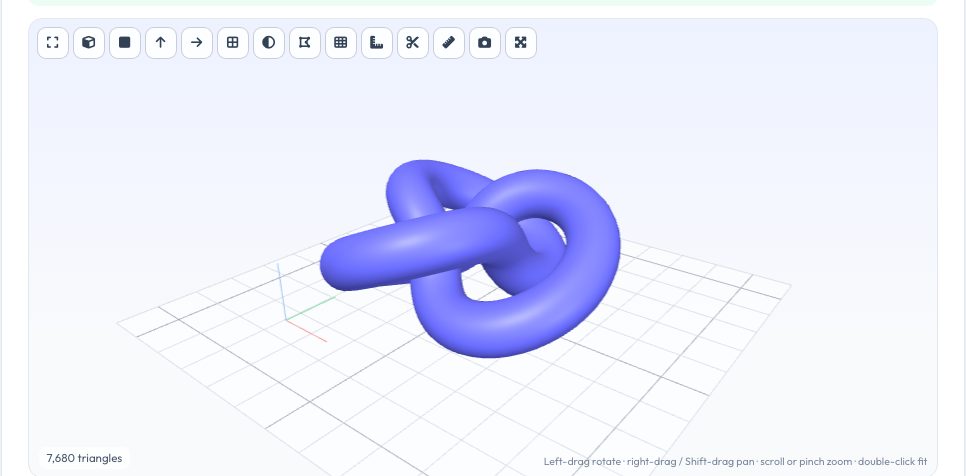
Free 3D Model Viewer & Analyzer (STL, OBJ, 3MF, STEP…)
Drop in almost any 3D file — STL, OBJ, 3MF, PLY, OFF, AMF, GLB/glTF, FBX, 3DS, or the CAD solids STEP/STP and IGES — and inspect it in a viewer built to feel smooth: drag to orbit, right-drag or Shift-drag to pan, scroll or pinch to zoom toward the cursor, double-click to fit. Preset views (isometric, front, top, right), perspective/orthographic, smooth/flat/wireframe/x-ray shading, a sharp-edge overlay, bounding-box dimensions, a section plane with a capped look, a two-point measure tool and a screenshot button make it a real inspection tool, not just a preview.
Beside the picture you get real numbers computed from the mesh: dimensions in mm and inches, volume, surface area, centre of mass, triangle and shell counts, and a print-readiness check — open (boundary) edges, non-manifold edges, flipped normals, zero-area triangles — with the problem edges highlighted in the 3D view. Pick a material and infill for an estimated print weight, show your printer's bed outline, fix the units if a file arrives 25.4× too big, and download the model converted to STL, 3MF, OBJ, PLY or GLB.
Key features
14 formats
STL, OBJ, 3MF, PLY, OFF, AMF, GLB/glTF, FBX, 3DS and STEP/IGES CAD files.
Smooth, precise viewer
Orbit, pan, zoom-to-cursor, section plane, measure, wireframe, screenshot.
Print-readiness check
Watertight, flipped-normal and zero-area checks with problem edges shown in 3D.
Real measurements
Dimensions, volume, area, centre of mass and weight by material and infill.
How to use it
- Drop in or choose an .stl file.
- Drag to rotate and scroll to zoom the rendered model.
- Read the real dimensions, volume, surface area and triangle count.
- Pick a material and infill % to see the estimated print weight.
- Check the watertight/manifold result before slicing.
Worked example
Example
A 40mm calibration cube STL loads with dimensions 40.0 × 40.0 × 40.0 mm, a computed volume of 64.0 cm³, surface area of 96.0 cm², 12 triangles, a watertight mesh (every edge shared by exactly 2 triangles), and an estimated weight of 79.4 g in PLA at 100% infill or roughly 20 g at 20% infill.
Who uses this tool
Makers checking a downloaded model before slicing
Confirm real dimensions and a watertight mesh before committing print time.
Anyone estimating filament cost up front
Get a real weight estimate from the actual model volume, not a guess.
Designers reviewing their own exported STL
Spot scale mistakes or non-manifold geometry immediately after export.
Tips for the best results
- STL files carry no unit — this tool assumes millimetres, the default for nearly every 3D printing workflow, so double-check if your CAD package exported in a different unit.
- A mesh flagged as non-manifold will usually still open in a slicer, but expect it to auto-repair or produce visible defects — fixing it in your CAD/mesh tool first gives a more predictable print.
- The infill weight estimate uses a standard shell-plus-infill approximation, the same idea slicers use for their own upfront estimate — treat it as a close planning number, not the exact gram count your slicer will report after real wall/top/bottom settings are applied.
Common mistakes to avoid
- Assuming the file's units are centimetres or inches just because the numbers look small or large — STL has no embedded unit, and mm is overwhelmingly the standard.
- Ignoring a non-manifold warning on a model meant for structural or watertight use (like a container) — minor decorative prints often still slice fine, but functional parts are worth repairing first.
- Comparing this tool's weight estimate directly to a slicer's post-slice estimate and expecting an exact match — both are estimates using slightly different assumptions about shells and infill geometry.
Why use AZRS QuickFix?
It is 100% free, needs no signup and has no watermark or usage limits. The tool runs in your browser, so what you type stays on your device, and it works on phones, tablets and desktops. New tools are added every week — bookmark this page or browse the full QuickFix toolbox.
Frequently asked questions
Does it open STEP files?
Yes — STEP/STP and IGES are tessellated in your browser with the OpenCascade CAD kernel (about 7 MB downloaded the first time).
Why does my model look the wrong size?
STL has no units. Change the 'File units' selector under the viewer — a model designed in inches needs 'Inches'.
Can I convert the file while viewing it?
Yes — pick STL, 3MF, OBJ, PLY or GLB and press Download; the unit and Y-up settings are applied.
What file formats does this support?
STL only, both the binary and ASCII variants, detected automatically from the file itself.
Are the volume and dimensions exact?
They are computed directly from the real triangle mesh in the file — exact for that mesh. If the mesh itself is malformed, the numbers reflect the malformed mesh.
What does 'watertight' or 'manifold' mean?
A manifold mesh has every edge shared by exactly two triangles, with no holes or overlapping surfaces — the condition a slicer needs to generate a valid, fully enclosed print.
How is the filament weight estimated?
Real computed volume is converted using your chosen material's density, either at 100% infill (the full solid volume) or using a standard shell-plus-infill approximation for a custom infill percentage.
Is my file uploaded anywhere?
No. Parsing, rendering and every calculation happen entirely in your browser; the file is never sent to a server.
Does it work on very large STL files?
Yes, though very high triangle counts (several million) can take a few seconds to parse and may skip the full manifold check to stay responsive — the viewer and measurements still work.