STEP / IGES to OBJ & GLB Converter
CAD solids to OBJ or GLB for AR, web 3D, Blender and Unity · free, no signup
See STEP / IGES to OBJ & GLB Converter in action
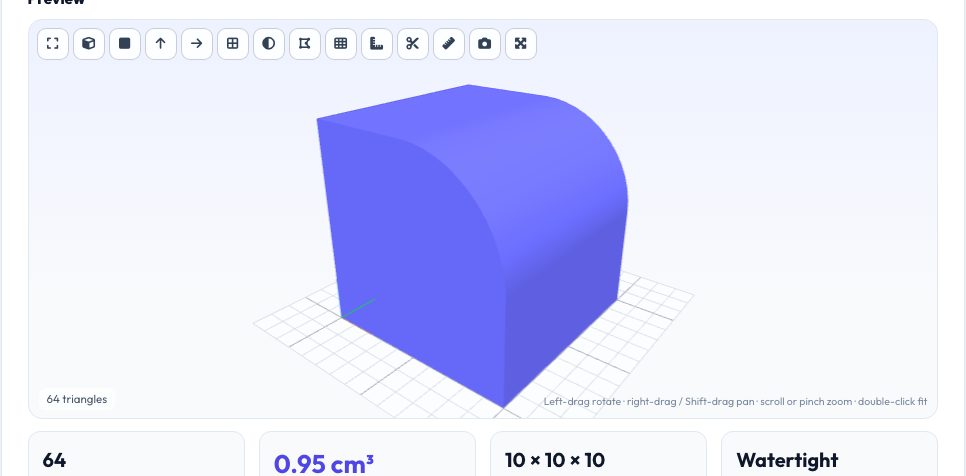
Free STEP / IGES to OBJ and GLB Converter
Engineering CAD lives in STEP and IGES; the web, AR and game engines live in OBJ and GLB (glTF). Getting a CAD part into a product page, an AR viewer or Blender normally means a heavy desktop pipeline. This tool tessellates your STEP or IGES solid in the browser with OpenCascade and writes a clean GLB or OBJ you can drop straight into model-viewer, Three.js, Blender, Unity or Unreal.
GLB output follows the glTF conventions automatically — metre units and a Y-up axis — so the model stands upright and at the right scale instead of arriving lying down and 1000× too big, the classic mm-vs-m mistake. OBJ output keeps millimetres (or the unit you choose).
Key features
GLB with correct scale & axis
Written in metres, Y-up, with smooth normals — ready for AR and web viewers.
OBJ, STL, 3MF, PLY too
Pick the output your pipeline needs; all produced from the same tessellation.
Mesh-density control
Draft to Ultra tessellation keeps web models light or print models smooth.
Local & private
Your CAD file is never uploaded.
How to use it
- Drop in a .step, .stp, .iges or .igs file.
- Choose GLB (web/AR) or OBJ and a quality level.
- Preview the model.
- Download and load it in Blender, Unity, model-viewer or your AR tool.
Worked example
Example
A 120 mm bracket exported as STEP becomes a GLB whose bounding box is 0.120 m tall in glTF units — exactly what AR viewers expect — with the part standing upright (Z-up CAD rotated to Y-up).
Who uses this tool
Product designers
Show CAD parts in interactive 3D on a website without a rendering pipeline.
AR / XR developers
Prepare CAD geometry for WebXR and Quick Look workflows.
3D artists
Import engineering parts into Blender for rendering.
Tips for the best results
- Use Draft or Normal for web: GLB size matters for load time.
- Materials and colours are not carried over from STEP — apply them in Blender or your engine.
- To print instead, use the STEP to STL converter.
- Check scale in your target app: glTF is metres, so a 120 mm part should read 0.12.
Common mistakes to avoid
- Importing OBJ into Unity at 1000× scale because the unit was millimetres.
- Expecting textures or PBR materials from a plain STEP file.
- Using Ultra quality for web delivery and ending up with a 40 MB GLB.
Why use AZRS QuickFix?
It is 100% free, needs no signup and has no watermark or usage limits. The tool runs in your browser, so what you type stays on your device, and it works on phones, tablets and desktops. New tools are added every week — bookmark this page or browse the full QuickFix toolbox.
Frequently asked questions
Does it keep colours from the STEP file?
No — the conversion outputs geometry only. Colours and materials are applied downstream.
Why is the model small in my engine?
glTF is metres; a model in millimetres must be scaled by 0.001, which this tool does for GLB output.
Can I get USDZ?
Convert to GLB here, then use a GLB-to-USDZ tool (Reality Converter or Apple's usdzconvert) for Apple Quick Look.
Is anything uploaded?
No. The CAD engine runs in your browser.