Digital Magnifier (Camera Zoom)
Use your device's camera as a zoomable, high-contrast magnifying glass · free, no signup
See Digital Magnifier (Camera Zoom) in action
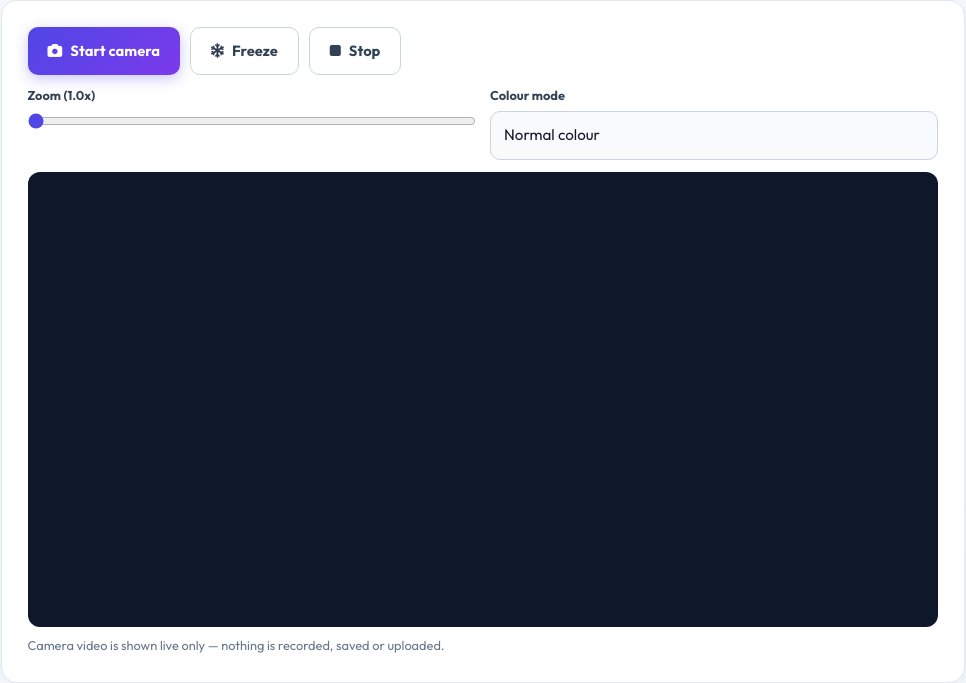
Free Digital Magnifier — Turn Your Camera into a Magnifying Glass
Point your device's camera at small print — a medicine label, a menu, a serial number — and this tool shows a live, zoomed-in view on screen, working like a digital magnifying glass without needing a separate device. Use the slider to zoom, and tap to freeze the frame if your hand is not steady enough to hold a zoomed view still.
High-contrast colour modes (black on white, white on black, yellow on black and more) can make text easier to read than the camera's natural colours, which helps in low light or for users with low vision. Nothing from the camera is recorded, saved or uploaded — the feed is only shown live on your own screen.
Key features
Live zoom
Zoom in smoothly using a slider.
Freeze frame
Capture a steady still image to read at your own pace.
High-contrast modes
Several colour filters to make text easier to read.
Private
The camera feed is never recorded or sent anywhere.
How to use it
- Allow camera access when prompted.
- Point the camera at what you want to magnify.
- Zoom in with the slider and adjust contrast mode.
- Tap Freeze to hold a steady still image.
Worked example
Example
A prescription label in dim light → zoom 4x, high-contrast yellow-on-black mode, frozen frame → the dosage text becomes clearly readable.
Who uses this tool
People with low vision
Read small print without a dedicated magnifier.
Anyone in poor lighting
Read labels, menus or documents that are hard to see normally.
Travellers
Magnify small foreign-language text on packaging or signs.
Tips for the best results
- Hold the device steady, or brace your hand on a table before freezing the frame.
- Increase contrast mode in dim lighting rather than relying on zoom alone.
- Clean the camera lens if the image looks hazy.
- Freeze the frame first, then zoom further on the still image for extra detail.
Common mistakes to avoid
- Trying to zoom too far past your camera's optical quality, which makes text blurry rather than clearer.
- Using it in very low light without a contrast mode, where the camera struggles to focus.
- Forgetting to allow camera permission, which prevents the tool from starting.
Why use AZRS QuickFix?
It is 100% free, needs no signup and has no watermark or usage limits. The tool runs in your browser, so what you type stays on your device, and it works on phones, tablets and desktops. New tools are added every week — bookmark this page or browse the full QuickFix toolbox.
Frequently asked questions
Is the camera feed recorded or saved?
No. Video is only shown live on your own screen and is never recorded, saved or uploaded.
Does it work on a phone and a laptop?
Yes, on any device with a camera and a modern browser.
Why is the image blurry when I zoom a lot?
Digital zoom enlarges the pixels your camera already captured; past a certain point that reduces sharpness — try moving physically closer instead.
Can I take a photo with it?
The freeze feature holds a steady still frame to read, though it is a display feature rather than a saved photo file.
Does it need an internet connection?
No extra network access is needed to use the camera and zoom once the page has loaded.
Is this a replacement for a medical low-vision aid?
No, it is a helpful everyday tool, not a substitute for prescribed low-vision devices or professional advice.