Screen Recorder & Screenshot
Record your screen, a window or a tab with audio — no install, no watermark · free, no signup
See Screen Recorder & Screenshot in action
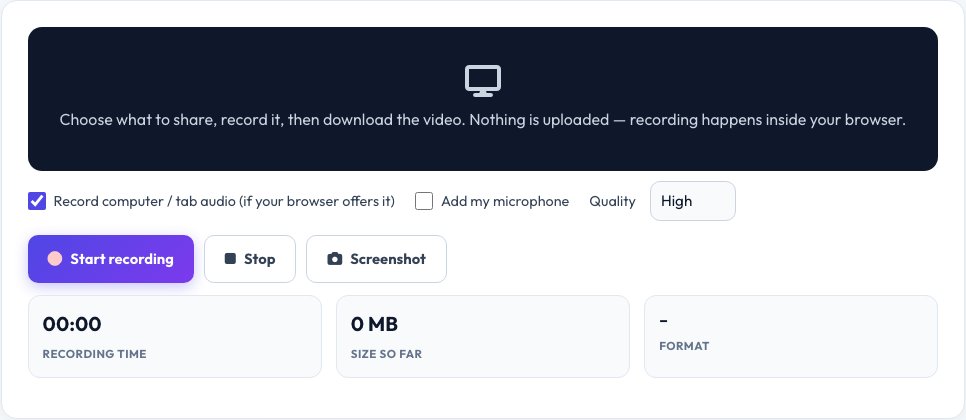
Free Online Screen Recorder — No Install, No Watermark
Record everything on your screen — the whole display, one application window or a single browser tab — right from the browser. Choose whether to include the computer or tab audio and your microphone, press Start, and when you stop you get a video you can preview and download straight away.
The recording is made by your browser and never uploaded: there is no signup, no watermark and no time limit. You can also grab screenshots while recording. It is ideal for tutorials, bug reports, lessons, demos and saving a video call or a presentation for later. Screen capture works on desktop and laptop browsers (Chrome, Edge, Firefox, and recent Safari); phones generally do not allow it.
Key features
Screen, window or tab
Pick exactly what to share and record.
System and mic audio
Mix computer sound with your voice for narration.
Quality choice
Standard, high or very high bitrate.
Screenshots
Capture a still frame during recording.
How to use it
- Choose audio and quality options, then click Start recording.
- Select the screen, window or tab your browser offers and confirm.
- Do what you want to record; click Stop (or use the browser's Stop sharing button).
- Preview the video and click Download.
Worked example
Example
5-minute tutorial at High quality → about 35 MB WebM with narration.
Tab audio is only captured when you tick “Share tab audio” in the browser's picker.
Who uses this tool
Teachers and trainers
Record lessons, walkthroughs and how-tos.
Developers and support teams
Send bug reproductions and demos.
Professionals
Capture presentations and product demos.
Tips for the best results
- To capture system sound on Windows and Chrome OS, choose “Share system audio” in the picker; on macOS use a tab.
- Close notifications and private windows before recording.
- Add your microphone for narration.
- Download straight away — the video is kept only in this tab.
Common mistakes to avoid
- Forgetting to tick the audio-sharing box in the browser dialog.
- Recording a window that contains passwords or private messages.
- Expecting it to work on mobile browsers, which do not support screen capture.
Why use AZRS QuickFix?
It is 100% free, needs no signup and has no watermark or usage limits. The tool runs in your browser, so what you type stays on your device, and it works on phones, tablets and desktops. New tools are added every week — bookmark this page or browse the full QuickFix toolbox.
Frequently asked questions
Is the screen recorder really free?
Yes. There is no watermark, signup or time limit.
Where is my video stored?
Only in your browser until you download it. Nothing is uploaded to our servers.
Why is there no audio?
Choose “Record computer / tab audio” and tick the audio option in your browser's share dialog. Add your microphone with the second option.
What format is the video?
WebM (VP9/VP8 with Opus) in Chrome, Edge and Firefox, or MP4 where the browser supports it. Both play in VLC and most editors.
Can I record on my phone?
Most mobile browsers do not allow screen capture from a web page. Use your phone's built-in screen recorder.
Does it record my webcam?
No. It records the screen. Use the Webcam Test tool to check your camera.