How to find your iPhone even when it's off
Your iPhone isn't fully lost even when it loses power, but you have to act quickly and make sure it's set up properly. As long as you have Apple's Find My enabled, you can find a lost or stolen iPho…
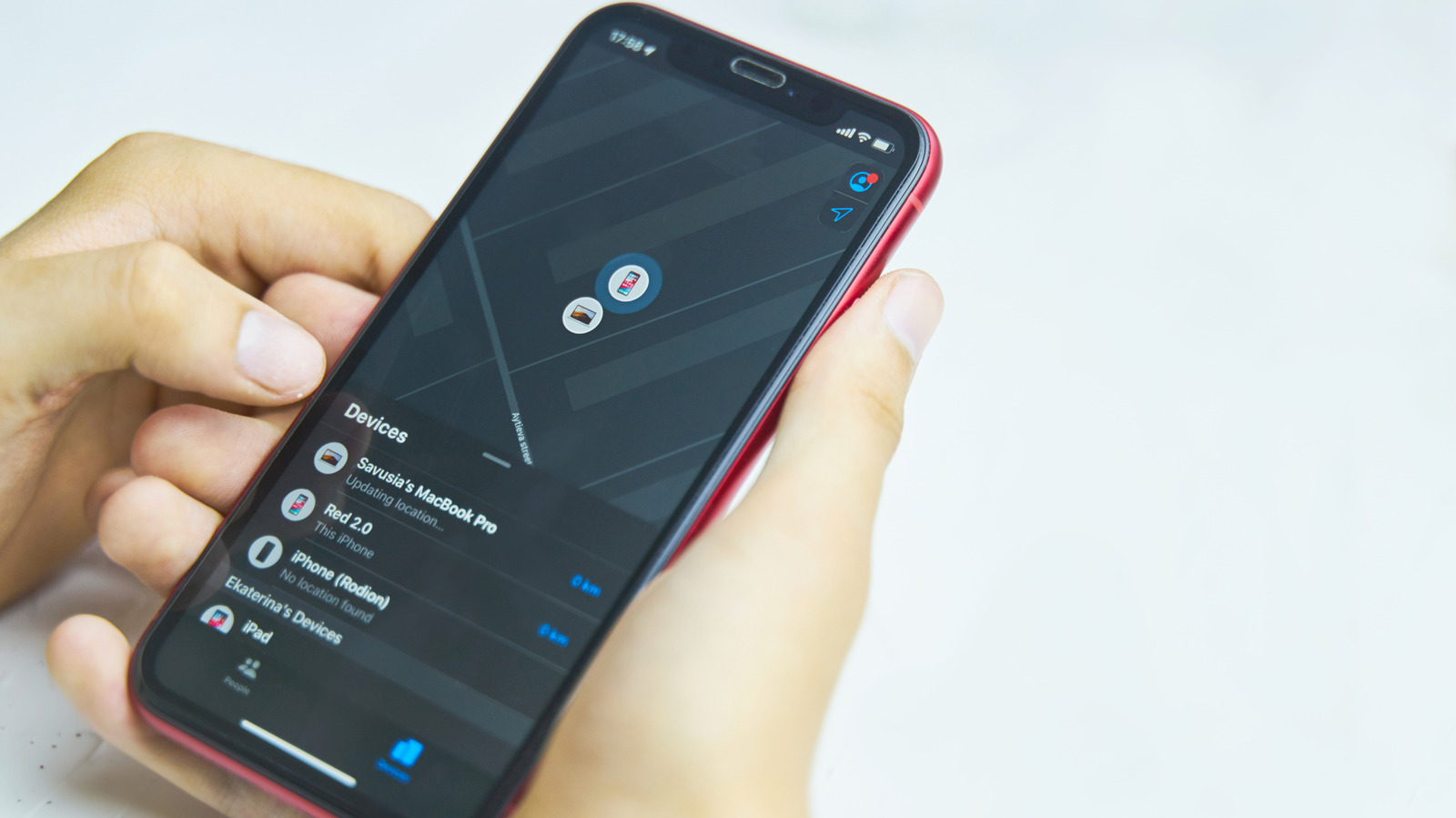
Your iPhone isn't fully lost even when it loses power, but you have to act quickly and make sure it's set up properly.
As long as you have Apple's Find My enabled, you can find a lost or stolen iPhone by logging into another device. But how do you locate your phone if its battery dies or someone turns it off?
The answer is nuanced: you may be able to find the phone, but it depends on a few factors. These include how long it's been off, whether the battery is completely dead, and if you have the right Find My settings turned on (not just the feature itself). With a quick enough reaction, you may be able to locate your device, even if it's off.
This is crucial because if you lose your iPhone, its battery will slowly deplete (unless you lose it while it's plugged into a charger). While you can use Find My to force your iPhone to play a sound even if it's in silent mode, it requires power to do this. If someone swipes it, chances are that turning it off is one of the first actions they'll take. And if it's left somewhere, whatever battery life remains will only keep the phone powered on for so long.
First, you need to understand the difference between Find My and Find My network; they're two connected but separate features. Find My is the app you use to locate your phone, while the Find My network is the crowdsourced Bluetooth system you must enable in order to find your iPhone even if it's offline . And this might not be on by default.
To check these options, go to Settings on your iPhone and select your name at the top. Choose Find My > Find My iPhone , then make sure Find My iPhone and Find My network are both enabled. The first slider is the core functionality, while the second explains that it lets you locate your phone even when it's offline, in Power Reserve mode or turned off.
Under that option is Send Last Location , which you should also turn on if it isn't already. It's a safeguard that has your iPhone sends its location to Apple one last time as soon as the battery reaches a critically low status. Speaking of which, Location Services ( Settings > Privacy & Security > Location Services ) and Bluetooth ( Settings > Bluetooth ) need to be enabled, and the iPhone needs to have sent its location to Find My within the last seven days to locate it.
To verify everything is working, swipe down from the top-right of the screen and hold the Power icon in the top-right corner. The power-off screen will pop up, where you should see iPhone Findable After Power Off noted underneath the slider.
Read Full Story at Engadget →